How to mod tennis elbow 4

I. Introduction
Basics
Tennis Elbow 4 has a very open engine, allowing easy modifications of many things.
The most obvious ones are about the player & tournament databases. But with a bit more time, you can also change the courts, and even add outfit or animations for the players !
First, you'll need the Modding SDK : https://www.managames.com/download.php?TE4-ModdingSDK_htm1.zip
Before making any modifications to TE4, make sure you accept the License included in the Modding SDK. To create Mods, you must own the full game, and you shouldn't modify the demo version.
You can also easily edit the .ini files in the “Ini” directory:
- Players.ATP.ini & Players.WTA.ini: contains all the players
- Tour.ATP.Ini & Tour.WTA.Ini: contains all the tournaments
- TourCategory.ATP.ini & TourCategory.WTA.ini: contains all the tournament categories; you can have up to 100
"ATP" files are for the men's tour, and "WTA" are for the women's tour. Later in this document, the files are refered without their ATP or WTA part; just edit the one for the tour you want to modify.
You'll find explanations about the outfits, the animations, and the stadiums, as well as other topics and a tutorial on the Forum : https://www.managames.com/Forum/topic60-33540.php
To use & mod the files
- Launch the game and click the "Show Data Folder" icon in Settings -> Profiles
- Open the "Mods" subfolder, then create a folder inside it and name it whatever you want
- Copy the files you want to edit, and make sure you recreate their full folder path; e.g. copy "TE4-ModdingSDK.zip/Specifics/Ini/Music.ini" to "Mods\MySuperMod\Specifics\Ini\Music.ini" ; for the players: copy "TE4-ModdingSDK.zip/Ini/Players.ATP.ini" to "Mods\MySuperMod\Ini\Players.ATP.ini"
- Warning: avoid copying the whole SDK into your Mod folder. Your final Mod should contain only the files you actually modified; this reduces the risk of issues after game updates
- Outfit folder is "Players\Textures"
- In case of issues, click Settings -> Profile -> Show Engine Log, then look for "Warning:" and "Error:" to see what the engine detected (some issues won't produce log messages, though)
- When you modify files, always test your changes. Even if everything looks fine, still check the engine log for warnings & errors. These messages often point to something wrong. Sometimes, something is wrong but the engine won't detect it and will crash instead, so be cautious... 😉
Ini Files
All files within the "Ini" & "Specifics/Ini" Folders, and any other .ini file, can be modded in two ways:
1) As explained above, simply copy the whole file in your Mod folder, and then edit it ; this method completely replaces the built-in file, which means if the game is updated, your Mod won't see the changes and new stuff brought by the official update (for GameSys.ini & Model.ini and likely other .ini's, this will lead to crashes !)
2) Create an empty file named after an existing file, but with "_Mod" at the end of the name ; for example, "GameSys_Mod.ini" for "GameSys.ini" ; in it, you'll add only the Sections and the Entries you want to create or change. Using this method, your Mod won't prevent the built-in .ini file to be loaded, and it will only bring changes and additions to it. Moreover, if several Mods are loaded at once, each Mod can bring its own additions and changes (in the order specified in Mods.ini, or OnDepend, or initial release date on Mod.io)
If you want to remove an existing entry, just write its name with nothing else after. eg: in GameSys.ini, there's the line "BallShadowReal = 0" ; so if you want to remove that, then in your "GameSys_Mod.ini", you just write "BallShadowReal".
You can edit the Ini files with the Windows Notepad or any other text editor, but not Word.
Language Files
The language files are in the "Text" sub-folder.
Like the Ini files, they can be modded in two ways: by completely replacing the built-in file, or by creating a new file with its name having "_Mod" at its end and then writing in this file only the new and changed Text Codes.
When possible, it is recommended to make all your Text Codes starting with a special character sequence, so your Mod Text Codes won't have any conflict with other Mods or game updates.
Country Codes
If you want to change the Country Codes, add a line like this for each modified country code in your Lang_English_Mod.txt (no need to put in other supported language files, except if the codes are different depending on the language) to change only their display ; eg:
CountryCHE SUI
Note : CHE is the official country code in the unmodded game. You'll find these codes in "Text/Countries_English.txt".
II. Tour Bases
Players.ini
The “Players.ini” file is fairly self-explanatory and contains many parameters.
The players' skills are normalized in-game according to their current rank.
The number after “[Player” is not important (but must be unique); the engine sorts players by ranking.
Be very careful to always keep enough players for the Country Cup (ie: at least 2 players every year for all countries in the Final & Qualif Draws).
Explanations about the parameters :
Most parameters are self-explaining.
Here more details :
RankPerYear = 1, 2, 2, 1, 1, 1.05, 1, 28, 9
This line will determines the rank of the player for each year. The player won't be necessary at this rank at the end of the year, but he should be quite close. It's used to determine his strength. This strength will be used to normalize most of the skills.
A rank of "-1" means the player won't play on this year.
A rank of "-2" means the rank will be the same as the previous year.
A rank of "1.05" means the player will get the strength to reach the 1st rank + a bonus of 5% ; you can give such bonus to any ranking, for example "2.03", but it makes sense only for the top 3 or 4, else just raise the ranking directly ; for example, you can have 2 players with a rank of 1 on the same year ; in this case, both will have a good chance to end up #1.
These skills are not normalized : Concentration, ColdBlood, Constancy, Motivation.
Instead, they are interpolated between the value in the base (when rank is on BestRank) to half of the base value (when at the 1000th rank).
Example :
ColdBlood = 78
with :
BestRank = 3
When RankPerYear is 3, then ColdBlood will be 78%; if RankPerYear is 1000, then ColdBlood will be 78 / 2 = 39% .
Off Time : you can specify off time for the player, making him not enter any tournament on some specific weeks ; to do so, add the weeks you want him to miss after his rank ; for example : "28 -5.15.20-25.40-," instead of "28," in the RankPerYear line above will make the player misses the week 1 to 5, then 15, then 20 to 25, then 40 to 52 ; it's equivalent of "28 1-5.15.20-25.40-52", but you can omit the 1st "1" and last "52". You need to set [WT_Static]MaxOffTimePlayer to at least the total number of players with off time values.
"FirstYear" is the player's Pro career starting year. However, he should appear up to 4 years earlier in the game, as a Junior player (for his 14th year), except if he's older than 19 for his 1st Pro year.
"SingleDouble" is the affinity for the singles or the doubles :
-1 => only singles
-0.5 => mostly singles
0 => equally singles & doubles
+0.5 => mostly doubles
+1 => only doubles
Body = 177 62
means 177cm for 62kg .
How to set the skills ?
As all the skills (except Concentration, ColdBlood, Constancy & Motivation) are normalized in real time by the game engine depending of the rank to reach during the current year, it won't make the player any stronger to set all his skills to 90 instead of 10.
So the idea is to set the skills around the value 35 :
- set to 35 if the player is normally skilled for this skill
- set above 35 if the player is relatively more skilled in this skill than in his other skills, to 40 if only a bit, to 50 if a lot, to 60 if very much
- set below 35 if the player is relatively less skilled in this skill than in his other skills, to 30 if only a bit, to 20 if a lot, to 10 if very much
For Concentration, ColdBlood, Constancy & Motivation for the best players, set them high from 75 to 95 depending of the best rank (from 20 to 1), and lower them a bit when the player has a weakness in this particular area.
Outfit Code
Each player can have an optional Outfit Code, that defines his appearance and strike styles. If he doesn't have an Outfit Code, then he has a default random appearance.
An Outfit Codelooks like this :
OutfitTE4 = v2 Eb p2 n0 ; Cl s0.1 ; Cr s0.1 b0 d1 ; Fh n0 ; Ht h174 s2.33 b0.2 d2 ; G n0 ; Sc s0.1 n03 ; Sk h3 s1.04 b0.9 ; So i1 s0.2 b0.1 n03 d1 ; Se n08 ; Si h5724 i1 s2.45 b0.65 n06 d2 ; RS s0.1 n02 ; RH ; R n04 d1 ; H p2 n14 ; E h5700 s0.65 b0.5 ; a 02~29~11~14~01~05 ; Gr n04 ; FhO13 FhB-22 FhH100 FMh-55 FLs63 FMo37 FMw33 FNh-93 FNw83 FNt6 FNa8 FNs64 FEc-78 FEs-25 FEh-100 FBl-88 FCb73 FCs52 FCn78 FJw-27 ; Hs 98 100 103
Note : the "Outfit" entry is for Tennis Elbow Manager 2 ; OutfitTE4 is for TE4, even if the TEM2 mode is activated.
To obtain such kind of code :
- go to Training Club -> Player Sheet -> Customize Character, and configure the player to your liking
- once it looks good, click on the "Copy Outfit code to Clipboard" button, and then paste the code in his Player section within Players.ini
- if the code isn't copied correctly, then you can find the code at the end of the Engine log
Adding players to the base without invalidating your saved games
1) Add the player at the end of the base and set him as you want
2) Lower by 1 FreePlayerSlots, under [WT_Static], at the start of the base.
eg, change :
FreePlayerSlots = 100
to :
FreePlayerSlots = 99
3) Save & launch the game
Tour.ini
Tour.ini is a bit less obvious, so here is a line-by-line explanation:
[Tournament001]
Name = Doha
Ground = HD
DrawSingle = 32
DrawDouble = 16
Category = 9
Country = QA
Week = 1
PrizeMoney = $1000000 142000 83600 49000 29000 17000 10000
- “Name” is the name
- “Ground” is the ground: CL = Clay; GR = Grass; HD = Cement; RA = Synthetic; IN = Indoor synthetic; HD_BG = Blue-Green Cement; PC = NewLine Synthetic; HR = Green Clay
- “DrawSingle” is the size of the draw for the Single competition; 0 means no Single draw
- “DrawDouble” is the size of the draw for the Double competition; 0 means no Double draw
- “Category” is the number of the category in the file “TourCategory.ini”
- “Country” is the code of the country where the tournament is located. You have the list of the codes within the file “Countries_English.txt” located in the same directory “Data”.
- “Week” is the number of the week in the year, from 1 to 52
- “PrizeMoney” is the money earned in tournament; 1st number = total prize; 2nd number = prize for winner; 3rd = for finalist; 4th = for semi-finalists; and so on
To add a tournament, just copy/paste this entire section. The number after “[Tournament” is not important (but it should be unique), the engine will sort tournaments by week and importance.
You can have up to 45 tournaments per week per competition (ie: 45 for singles, and 45 for doubles). Don't forget the qualifications count for 1 tournament apart, and the Country Cup Qualifications as well. Both the Junior & Pro tournaments count toward that limit.
So for example, you can have 22 tournaments / week, every week, if all your tournaments have singles & doubles & qualifications draws.
If you add a surface entry, it'll replace the Ground entry (you can find all the surfaces in the TE4 SDK "Courts\Surfaces" folder). eg:
Surface = ClayFast
You can also specify a stadium like this (you can find all the stadiums in the TE4 SDK "Courts\Stadiums" folder) :
Stadium = MonteCarlo
Adding tournaments to the base without invalidating your saved games
1) Add the tournaments at the end of the base and set them as you want
2) Give them a year period after the current year of your saved games (the current week should 50 or before)
3) Save & launch the game
TourCategory.ini
[Category01]
Type = GrandSlam
EntryPoints = 1000 700 450 250 150 75 35 5
RacePoints = 200 140 90 50 30 15 7 1
QualifEntryPts = 15
QualifRacePts = 3
Seed = 32
QualifDraw = -1 // Last direct acceptance = Draw - NbQualified
QualifSeed = 16
QualifNbRound = 3
QualifDrawDouble= 0
QualifSeedDouble= 0
NbSetFinal = 3
NbSetRound = 3
SetType = 3
NbDoubleSet = 2
NbDoubleSetFinal = 2
TopPresence = 0.95
TieInLastSet = 0
ForcedRank = 1
- “Type” can be Future, Challenger, IntlSeries, IntlSeriesGold, MasterSeries, GrandSlam, MasterCup, or TeamCup
- “EntryPoints” is the points earned for the Entry Ranking; 1st number = for winner; 2nd = for finalist; 3rd = for semi-finalists; and so on
“RacePoints” is same as “EntryPoints”, but for the Race Ranking - “QualifEntryPts” is the bonus points received by qualified players reaching the final draw, for the Entry Ranking
- “QualifRacePts” is same, but for the Race Ranking
- “Seed” is the number of seeded players in the draw
- “QualifDraw” is the size of the Single qualification draw; ‘-1’ means the qualification draw will have the same size than the final draw set by the tournament in “Tour.ini”
- “QualifSeed” is the number of seed for the Single qualification draw; ‘-1’ means it’ll have 2 seeds for each qualified player
- “QualifDrawDouble” & “QualifSeedDouble” are same as “QualifDraw” & “QualifSeed”, but for Double draw
- “NbSetFinal” is the number of sets in single for the final
- “NbSetRound” is the number of sets in single for other rounds
- “SetType” is the type of number of set, for the human players (it can be edited for each type when beginning a new game)
- “NbDoubleSet” & “NbDoubleSetFinal” is the number of sets in double
- “TopPresence” is the chance ratio that a “top” player will enter this tournament
- “TieInLastSet” : ‘0’ means won’t have tie-break in the last set; ‘1’ means will have tie-break in the last set
- “ForcedRank” to 1 means that this tournament counts for the ranking if the player has the needed ranking to enter it directly, even if it's not a best result
Misc
Older bases
If you are starting your current career a long time, you might still be playing with older Tour bases. To avoid invalidating your current career, you should then take the correct bases in the subfolder "Ini\v1" or "v2" or "v3, etc.
Country Cup
If you need to count the number of players per country, change this line in Tennis.ini (or the .ini of your current profile), under the section [WT_Static], from:
CountCountry = 0
to :
CountCountry = 1
⚠ Important:
- You need to have at least 2 players per country in the Country Cup for each year of the game!
If you want to have the Country Cup rounds on different weeks for different years, read here : https://www.managames.com/Forum/topic60-35117.php
Invalid Saved Games:
- Some changes to the Tournament Banks will invalidate your current saved games ; so you'll be forced to start a new game to enjoy your changes (ie: week, draw size, category, number of sets per match)
- Removing Players will also invalidate your current saved games
Different Tournaments each year
To do so you have to use the following entries in your Tour.ini : YearPeriod, YearModulo & YearModulo+ .
Check Tour.ATP.ini for examples.
eg:
YearPeriod = -1978 1980 1982 1984-1990 2022-
=> starts with "-1978" means all years till 1978
=> ends with "2022-" means all years from 2022
YearModulo = X
=> Tournament happens every X years, starting at 0
YearModulo = -X
=> Happens the years which are not every X years
YearModulo+ = Y
=> Starts at -Y instead of 0
If needed, you can give them the same Family name and they will be joined for the Past Champions screen (check Montreal/Toronto in the official base). Be sure to give a unique Family name for each series of tournaments to join together.
For the Country Cup, you'll have to do additional things if you want to change their week from one year to another ; read here for more details.
Coaching Strategy
In CPU vs CPU matches in the Training Club, you can define the Coaching strategy of a player and then click on "Save Strategy -> Copy the current Coaching Strategy code to the clipboard" (on the bottom right).
This will put a code like this in the clipboard (and the Player.log) :
Code: Select all
Strategy = F 100 100 -90 -90 98 -80 99 0 0 0 0 0 0 -85 97 -90 0 P 100 100 -90 -90 98 -80 99 0 0 0 0 0 0 -85 97 -90 0
You can then paste this line (with CTRL+V) in a section of a player in your Players.ini so this strategy will be applied when he plays (without any penalty).
You can also define the default strategy of a Training Club player with "Save Strategy -> Enter Strategy code" & "Save the current strategy as the base strategy for this player".
How to add pictures for the players
if you want to add a photo for any player, put it here : "Mods\MySuperMod\Menu\Art\PlayerAutoPhotos\ATP" for men, and "PlayerAutoPhotos\WTA" for women (replace "MySuperMod" by any Mod name you want).
The game can load .jpg, .png & .tga files.
The name of the photo must be exactly the name of your player.
For headshots in the World Tour, add "_HS" after the name ; eg: "Pete Sampras_HS.jpg".
III. Menus
The menus work with scripts.
You can find a little doc in the file “Menu.doc” containing the instructions in the Menu directory of the Modding SDK.
If you're not a coder, you'll have a hard time to make changes.
TE4 uses first the menu files in "Menu/ScriptTe" ; so if a file is both in "Menu/Script" & "Menu/ScriptTe", the one in "Menu/Script" will be ignored. If the TEM2 mode is activated, then the game completely ignores "Menu/ScriptTe" and uses only "Menu/Script".
The Render Engine uses Shaders, contained in “Ini\Images.ini”. You can edit them with the Notepad, it’s only plain text.
The game can automatically reload .menu files without restarting if you activate DevMode (HowTo on the Forum). Then, when you switch back to the game (i.e. after editing a file), TE4 will reload the .menu files for the currently active menu.
⚠️ Warnings:
- the game cannot detect a change to the .def files, so resave the corresponding .menu files if you want to see your changes
- sometimes the reloading doesn't work, especially if the file size didn't change, so add some characters in a comment and resave it to fix the issue
- dynamic variables defined in the .menu file will be set back their initial value, so the menu won't be correctly displayed if these dynamic variables had some different values before the reloading
Changing tournament backgrounds in the menus & text match
add this to any tournament in Tour.ini :
Background = MySuperBackground
and put this image like this : Mods/MySuperMod/Menu/Art//CustomCourtBackground/MySuperBackground.jpg
⚠️ Note: use power-of-2 dimensions so the images will be faster to load (eg: resize your photo from 1920x1080 to 2048x1024, or smaller size to save on loading time & memory)
If the image aspect ratio is not 16:9, you can add, for example if the ratio is 4:3 :
BackgroundAR = 1.333
IV. 2D Court
2D Courts are photos displayed when you enable Settings -> Video -> Advanced -> 2D Background.
The 2D Courts image should be put in the Stadium folders ; eg : Courts\Stadiums\UsSlam\Court.jpg
⚠️ Notes :
- use power-of-2 dimensions so the images will be faster to load (eg: resize your photo from 1920x1080 to 2048x1024, or smaller size to save on loading time & memory)
- the center of the image has to be the center of the court, else the line positioning won't work
Automatic line positioning for 2D courts
You define the custom camera for 2D courts like this in the Stadium.ini (or Stadium_Mod.ini if you want to modify an existing Stadium) :
 	[Camera]

 	AspectRatio    =    16:9

 	AutoU1        =    0.3323

 	AutoV1        =    0.2106

 	AutoU2        =    0.8297

 	AutoV2        =    0.7810
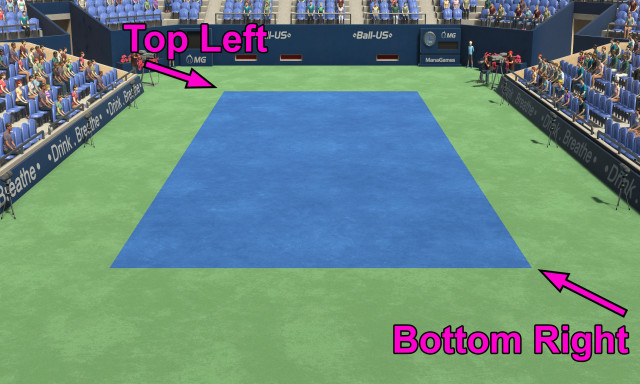
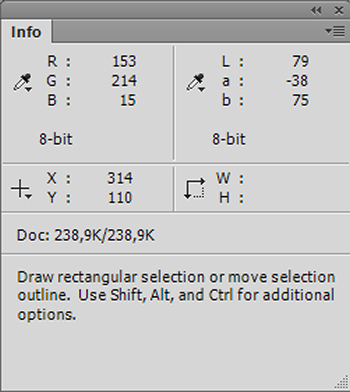
i.e.: you just note down the top-left & bottom-right corners of the lines. To get these coordinates, divide the pixel's X by the image width, and the pixel's Y by the image height (so the coordinates are normalized and will still work if you resize the image later). U1/V1 is the top-left line corner, and U2/V2 is the bottom-right line corner.
Info box to get U/V (shown as X/Y in Photoshop) ; click the little cross left of X/Y to change the display mode :
Aspect Ratio
AspectRatio can be "1.6" or "16:10", it's the same.
For courts without a corridor
add this line :
AutoNoCorridor = 1